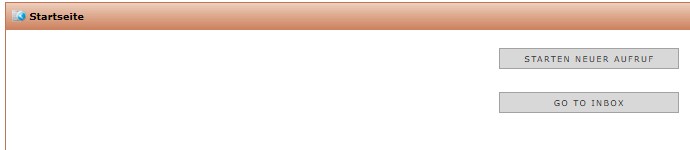
Sobald ein Gast am Telefon ist und sich nach Preisen und Verfügbarkeiten erkundigt, klickt der Reservierungsmitarbeiter in phoneNG den Button „Starten neuer Anruf“ an:
Sofort öffnet sich das erste Fenster mit der definierten Begrüßung oder Frage, die je nach Hotel oder Hotelgruppe hinterlegt wird:
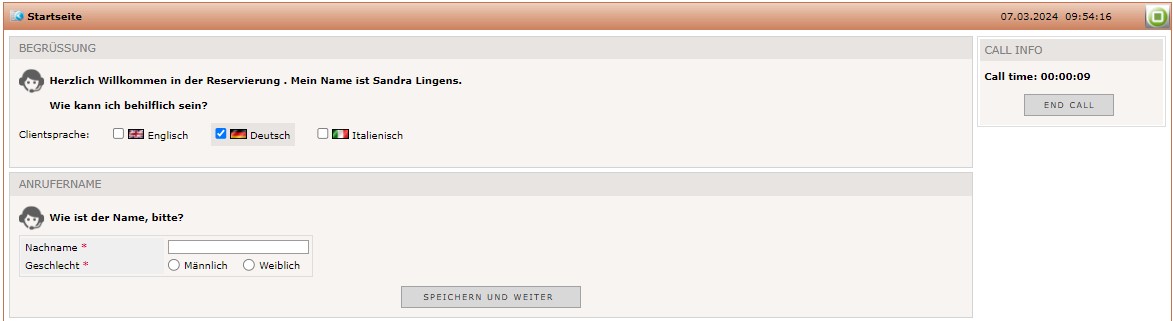
Ganz oben wählt der Reservierungsmitarbeiter die Sprache aus, in der mit dem Gast kommuniziert werden soll.
Welche Sprachen zur Auswahl stehen, wird in rezNG unter dem Menü Konfiguration => Hotel Konfiguration => Parameter => Sprachen festgelegt::
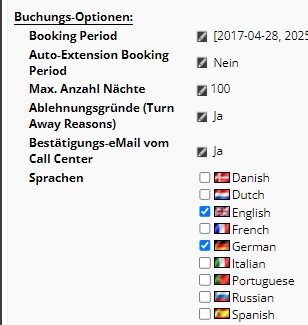
Abhängig davon, welche Checkboxen aktiviert sind, stehen diese Sprachen als Gastsprachen auch in phoneNG zur Auswahl.
Den vorgegebenen Fragen folgend, wird nun der Gastname in das dafür vorgesehene Feld eingetragen:
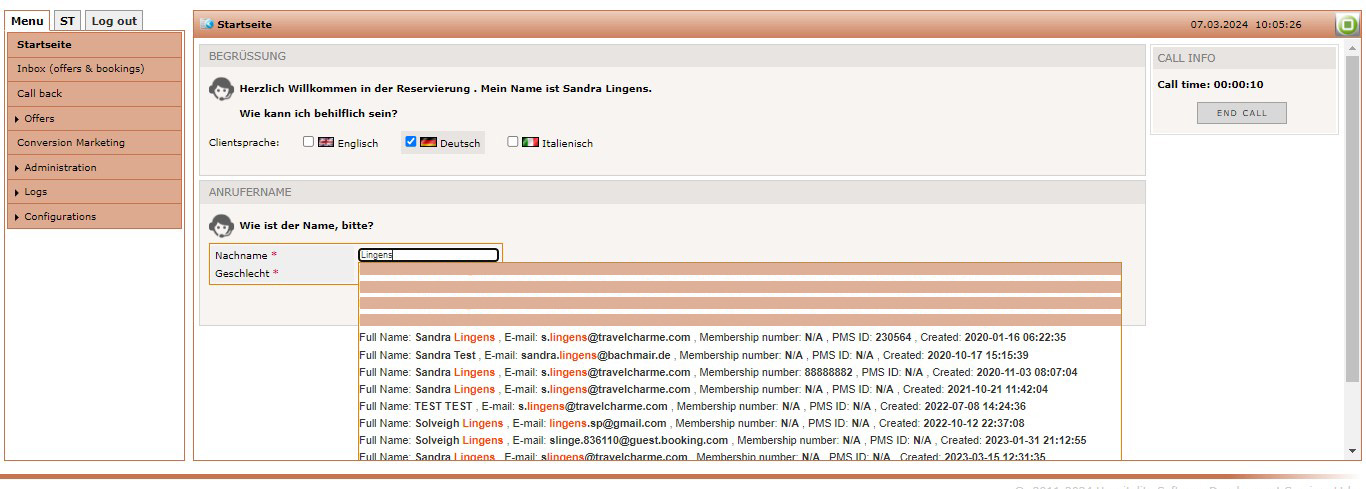
Falls der Gastname bereits im System vorhanden ist, zeigen sich alle Gastkarteien, die mit dem Namen in Verbindung gebracht werden.
Neben dem Gastnamen, kann auch eine E-Mail-Adresse oder die Mitgliednummer des Loyalty Programms als Suchkriterium eingegeben werden. Dies kann hilfreich sein, um die Anzahl der angezeigten Karteien zu reduzieren. Nach Eingabe des Gastnamens gibt es nun zwei mögliche Wege:
- Der Gast bereits in einem der Hotels zu Gast => Profil wird ausgewählt
- Der Gast reist zum ersten Mal in das Hotel => Sein Name wird eingegeben und es wird ein neues Profil erstellt
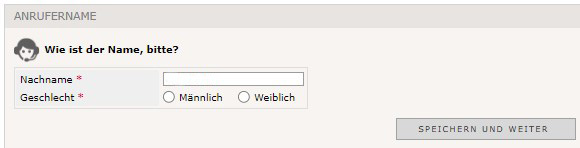
Nach der Eingabe klickt man auf den Button „Speichern und Weiter“, um zum nächsten Abschnitte zu gelangen. Falls man das Geschlecht (Pflichteingabe) nicht auswählt, erscheint ein kleines rotes Ausrufezeichen an den Checkboxen, um zu signalisieren, dass Pflichtfelder nicht ausgefüllt wurden.
Im vorliegenden Fall, wird nun danach gefragt, was das Anliegen des Gastes ist:

Aus dem Drop Down Menü kann dann ausgewählt werden, aus welcher Quelle dem Gast das Hotel oder die Hotelgruppe bekannt ist. Hotelgruppen, die eine zentrale Reservierungsstelle haben und mit den einzelnen Hotels die Leistungen der Mitarbeiter dort mit einer Servicegebühr pro Buchung abrechnen, können auch hier diese Zentrale als Source registrieren. Das erleichtert die Abrechnung am Ende eines Monats, wenn im PMS danach ausgewertet wird. Da es sich nicht um ein Pflichtfeld handelt, kann man diese Angabe überspringen und durch einen Klick auf den Button „Speichern und Weiter“ die Kommunikation mit dem Gast fortsetzen.
Der nächste Abschnitt gilt der Hotelauswahl, wobei die Fragen wie bereits erläutert, hotelindividuell und hier nur als Beispiel anzusehen:

Falls es sich um eine Hotelgruppe handelt, die eine spezielle Zielgruppe anspricht oder deren Hotels sich durch besondere Merkmale auszeichnen, empfiehlt es sich sicherlich, dies zu erläutern.
Wird die Frage mit „Nein“ beantwortet, kann man weiter zur Hotelauswahl gehen. Sobald „Ja“ gewählt wird, zeigt sich die entsprechende Antwort direkt unterhalb der Frage:
Which questions will be used, can be configurated in phoneNG Configurations => Messages editor.
In the next step, the hotels is chosen if there are more than only one property:
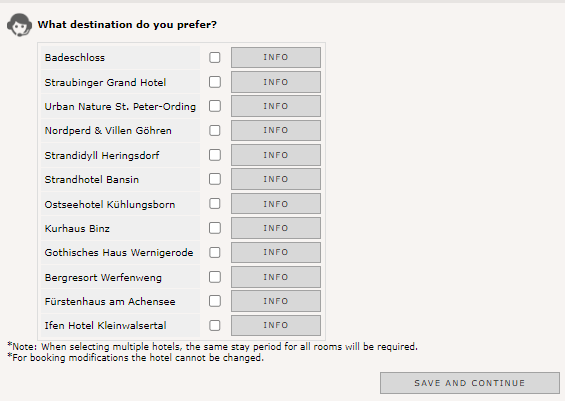
If the guest needs further information about the hotel and its amenities or special features, the agent may click on „Info“ and gets the following description:
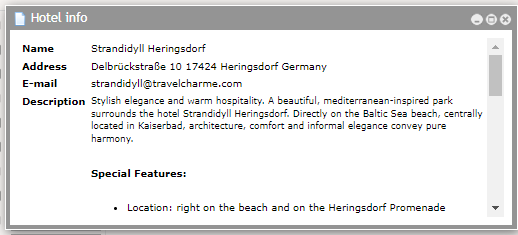
All this information are set up inside rezNG Hotel Management => General => Hotel Edit.
To select the hotel the guest has chosen or in which he is interested in, the reservation agent activates the check box and press „Save and Continue“.
After selecting the hotel, the availability and price must be checked:
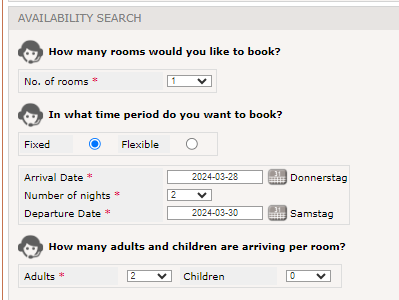
First of all, the agent has to enter how many rooms should be reserved. This can be choosen out of the drop down menu. Depending of the hotel strategy, only a limited number of rooms can be booked in one reservation. More than this limit will be considered as a group booking and is often managed by a special department.
Afterwards, there is the option to choose if the travelling period is fix or flexible. This choice will influence the following steps:
A fixed travel period: If the guest can travel only in the from him mentioned time fram, the agent will activate „Fixed“, enter the arrival date and the number of nights. The departure date will be modified automatically.
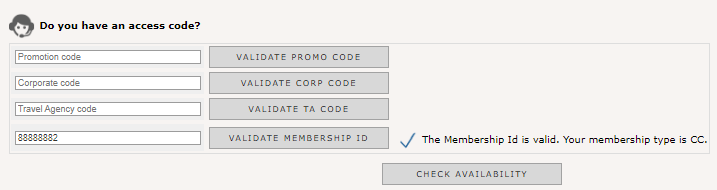
The next information which is required is the number of adults and children which will travel. Before you may start the availability and price check, you can enter a promotion or company code to access special rates. After putting in all required information, you may use „Save and Continue“ to see the prices and available rooms.
A flexible travel period: If the guest has no fixed travelling period but knows how many nights he wants to stay in between a special time frame, the reservation agent activates „Fixed“, enters the arrival and departure date and the number of nights. The number of adults and children is also mandatory and must be filled in. After entering a promo or company code in case the guest wants to book a special rate, the reservation agent clicks „Save and Continue“ to enter the next step.
All fields with a red star are mandatory to fill in.
Now the availability and prices are shown in a kind of matrix. This will look different for fixed and flexible travelling periods.
Fixed Travel Period:
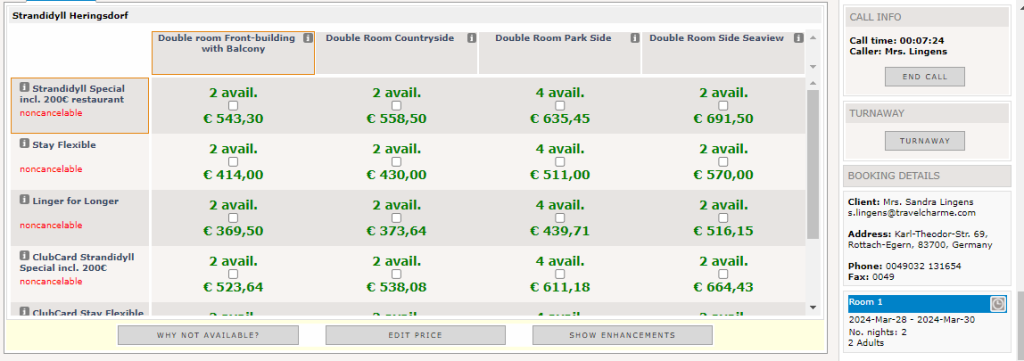
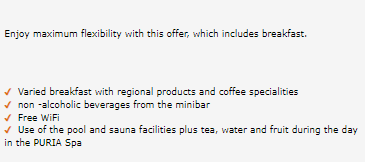
On the left hand side, the different offers are listed. Next to each offer, the small letter „i“ shows that further information can be seen when clicking on the letter. Directly, the rate description appears in a small window:
Directly below the name of the price code you may see the cancellation policy. The reservation agent has to move mouse over the text to see the full information:
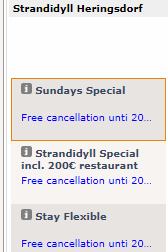
Um die Frist genau erkennen zu können, fährt man mit der Mouse langsam über den
In the upper line, the room types were shown and have also the small letter „i“ next to each room category:
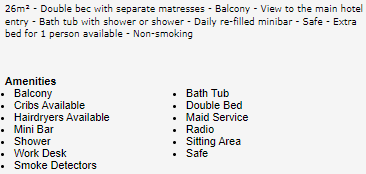
The room description is configurated in the room description inside rezNG.
Flexible travel period
If the guest is more flexible, the result matrix looks different:
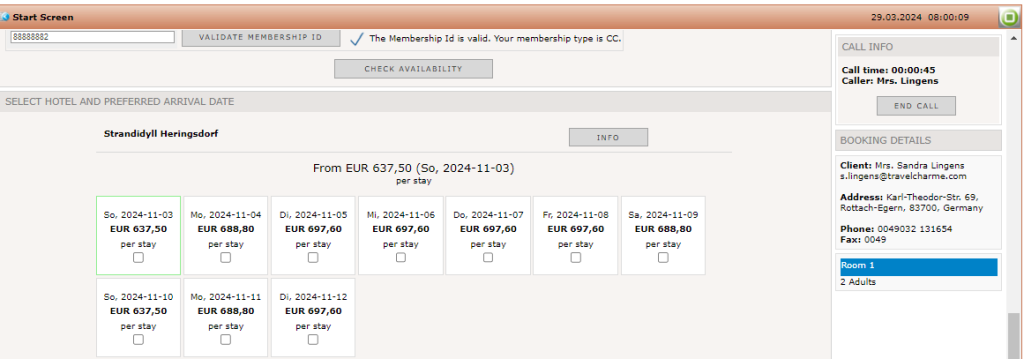
The total amounts are listed split by arrival date. If the guest has chosen one option he wants to book, the regular matrix is shown and the reservation agent can give further information about the included services and cancellation policy:
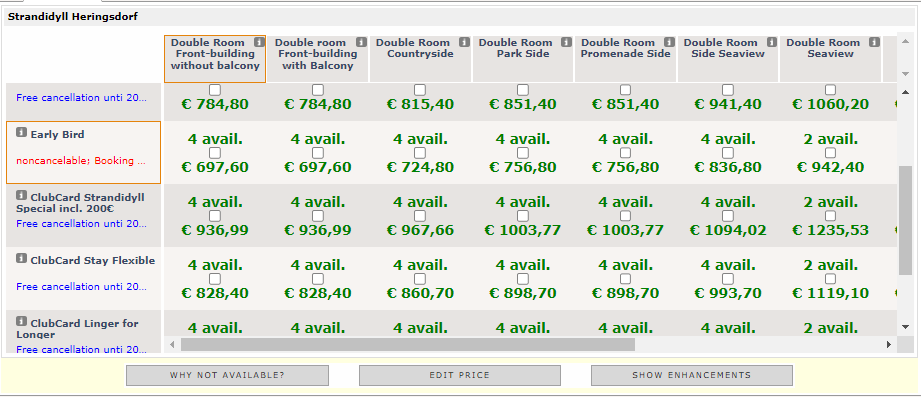
It is now possible that the guest choose another price offer.
In both cases the next steps are the same. By activating the check box for the chosen room/rate combination, this one is selected for the reservation:
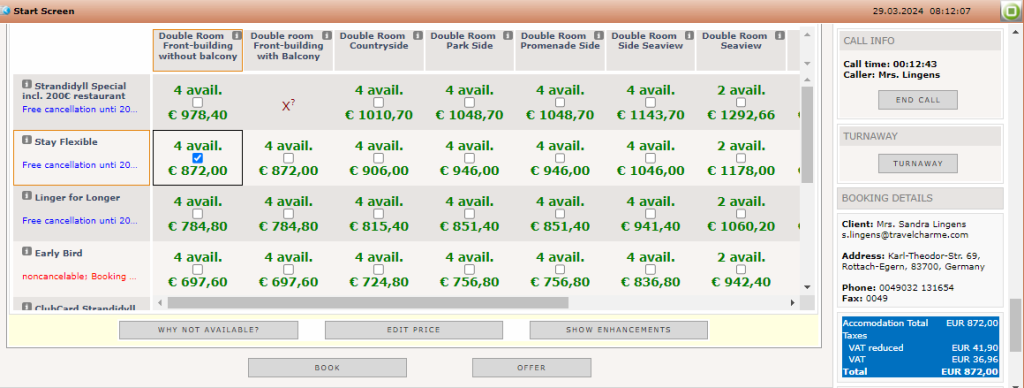
On the right hand side all reservation details are shown as well. You can see the guest name and contact details and if you scroll down a bit, you can check the arrival and departure date as well.
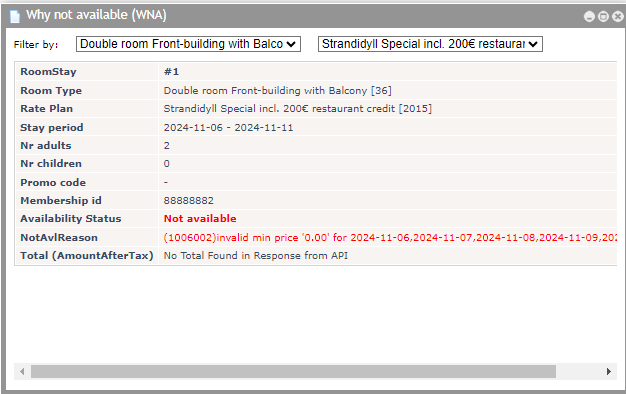
Some of the room/rate combinations have a red cross which means that they are not available. To get further information you may click into the box with the cross or use the button „Why not available“.
The information is published in a separate screen:
After the guest has selected the room type and the offer, the reservation agent may offer him some additional services like parking or a spa treatment. All available offers can be seen by clicking on „Show Enhancements“ directly below the room/rate matrix:

The list will appear with the single prices per service:
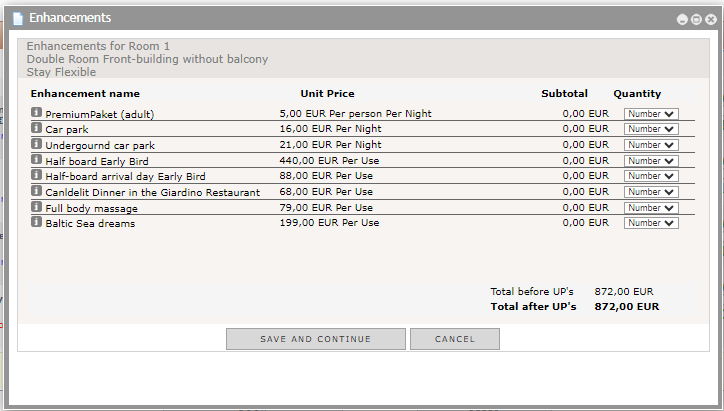
The quantity must be chosen at the end of each line of the enhancement and the total amount of the reservation will be shown on the bottom of the screen.
After the enhancements are chosen, you click „Save and Continue“ to proceed with the reservation process.
To finish the process, you click „Book“ and were lead into the booker and guest details section.
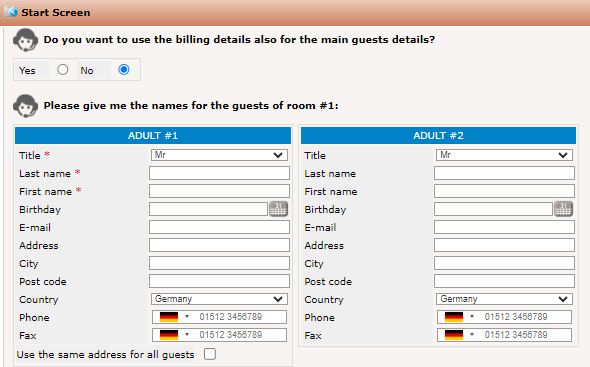
You can choose, if the billing details should be used for the main guest as well. Depending on how the payment is settled, this message can also be deactivated.
The guest names for the room has to entered in the screen below. All fields with a red star are mandatory. In case the address for both guests is the same, you can activate the check box for „use the same address for all guests“. Directly, the address is insert also for the second guest.
If there are some information which are important to transfer to the hotel, the reservation agent can enter this in the screen below the addressee fields:
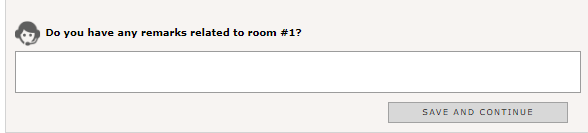
When also this information is completed, click „Save and Continue“ and in case you have some further comments to forward to the hotel, you should enter it in the field for internal comments:
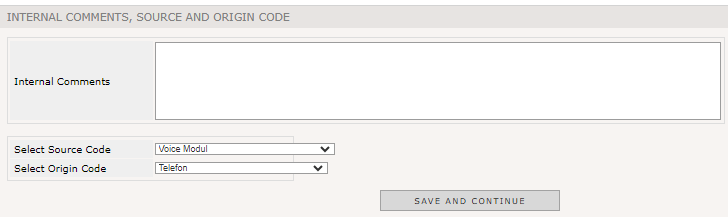
Here you can see the preselected source (Voice Modul) and origin codes (Telefon) are already filled in automatically.
Afterwards, you can see the summarized reservation details in the next step to have a chance to check and to repeat everything for the guest:
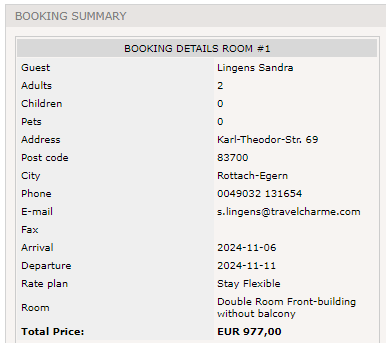
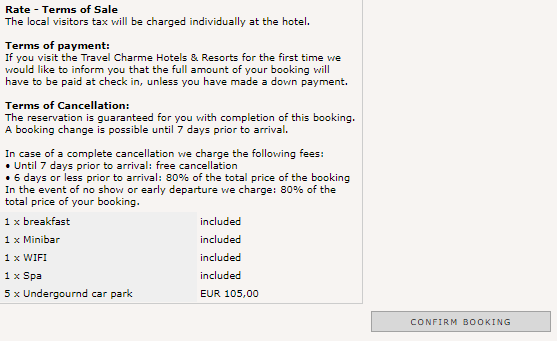
When the agent made sure that all reservation details are correct, he can press „Confirm Booking“ and gets the confirmation number directly mentioned at the end of the process:

Edit Price
Some reservations needs to be modified when it comes to the total amount. Therefore, you may activate the “Edit Price” function inside phoneNG which is visible with ist own button at the end of the price matrix:
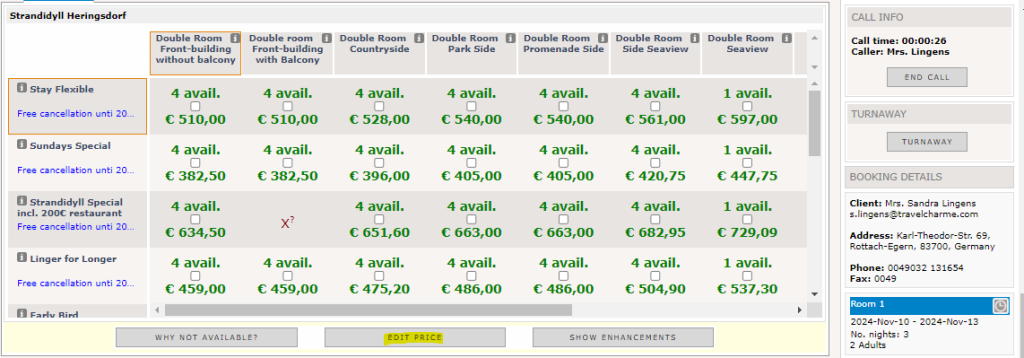
First of all, the reservation agent has to choose a room rate combination and afterwards he clicks on the button to open the following screen:
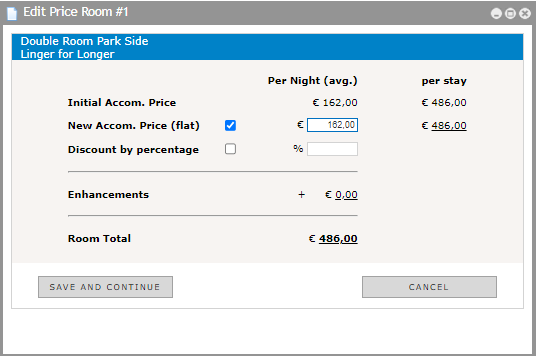
As you can see the initial amount is mentioned and you can now enter the new accom price. The dsicount percentage is calculated automatically and the new total amount will be mentioned as well on the right hand side next to the matrix where all reservation details are summarized. The old price is crossed out to make visible that the „Edit Price“ function was used.
After the price is modified, the reservation agent can proceed booking the room as described already above.
Multiple Room Reservations
In phoneNG you also have the possibility to reserve more than one room. The process will be the same like it is for one room but when you reach the question „How many rooms would you like to book?“ you can open the drop down and choose the number:
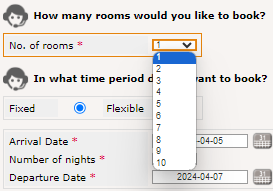
How many rooms you may reserve in one reservation must be defined inside rezNG. Many hotels offer special rates for groups of more than 10 hotel rooms.
After entering the required number of rooms, you have to decide if the travel period is fixed or flexible.
Fixed Travel Period
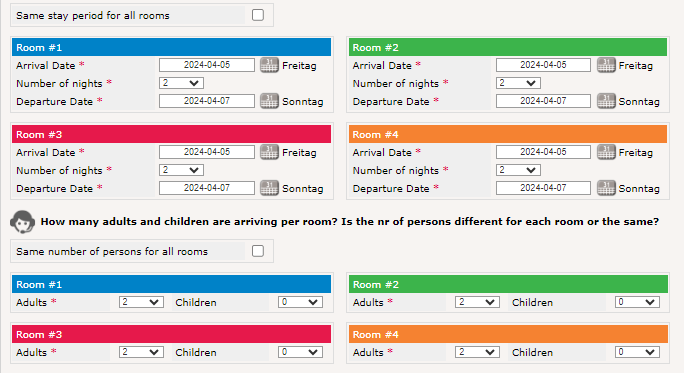
If the guest has a fixed travel period, you can enter if all rooms will stay for the same period or if there are different arrival and departure dates:
To reserve the same time period for all guests, you can activate the check box and directly only one window for the arrival and departure dates stays there:
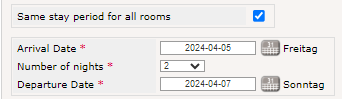
The reservation agent has to enter the arrival date and the number of nights the guests want to stay.
In case, the number of guests inside the rooms are different, you may also enter this per room in the next step:
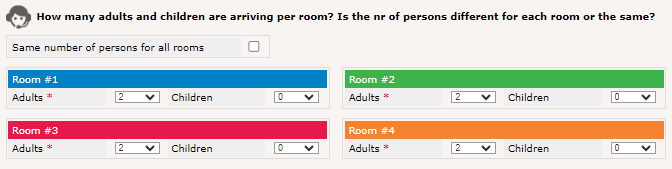
In the top line of these boxes, another check box is visible. This can be used if there is the same number of guests in all rooms. By activating this box, only one screen will be left for entering the number of persons:

After filling the correct values in, you may enter a special reservation code if the guest has one. Otherwise you proceed by clicking on „Save and Continue“ and you will see the several options offered:
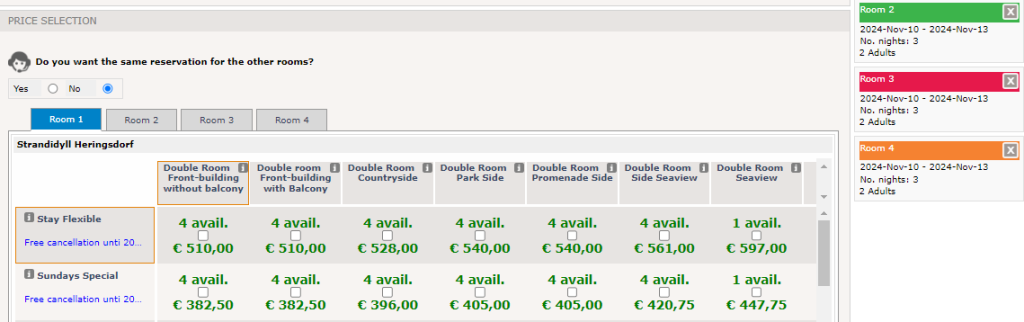
On the top pf the overview, you may see so many tabs as rooms you would like to reserve. Each room as its own colour which was already visible after choosing the number of rooms. This colours will be repeated on the right hand side if you decide to reserve different offers per room. Also here, you may choose one room/rate combination which will be the same for all rooms. This can be done by activating the check box above the price matrix:
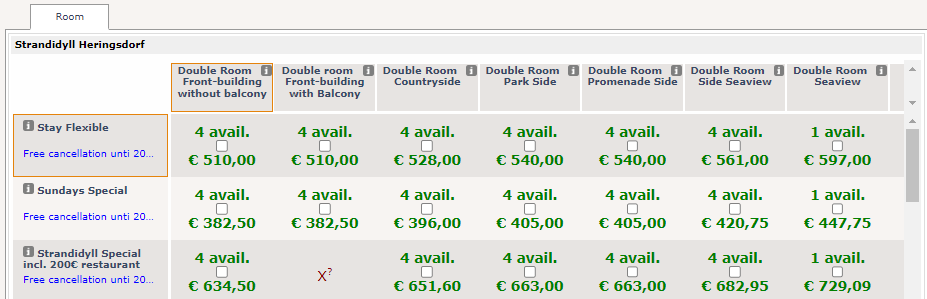
Only one tab is left and now you choose the most suitable room/rate combination for the guests.
The process of reserving the rooms is similar to arrange the reservation of only one room. If possible you should enter all names for the rooms which makes it easier for the hotel staff to deal with the reservation on the operational side.
Flexible Travel Period
In case the small group is more flexible regarding arrival and departure date, you can enter this information at the beginning:
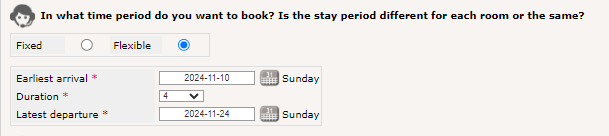
A difference between the fixed and the flexible travelling period is that for flexible periods you may choose one time period and the number of nights for all rooms and not per room. Here, you have to enter the arrival date, the departure date and afterwards the number of nights the guests want to book.
The next step is the same like for the fixed travel period. You enter how many guests will stay in each room or in case the number is the same for all rooms, you activate the check box. If the guests would like to use a special promo or membership code, you enter it in the field or proceed without code by clicking on „Check availability“
The results are shown in small boxes with different arrival dates:
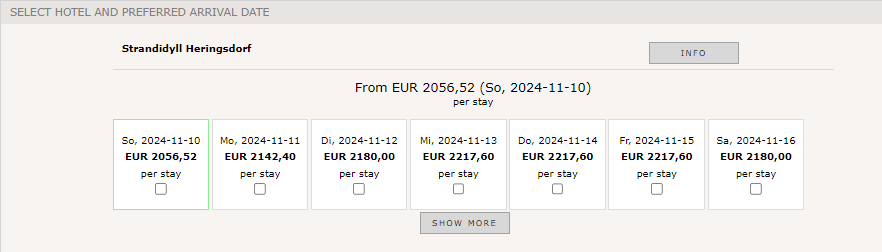
After you have chosen the most suitable one, the complete room/rate combination table appears:
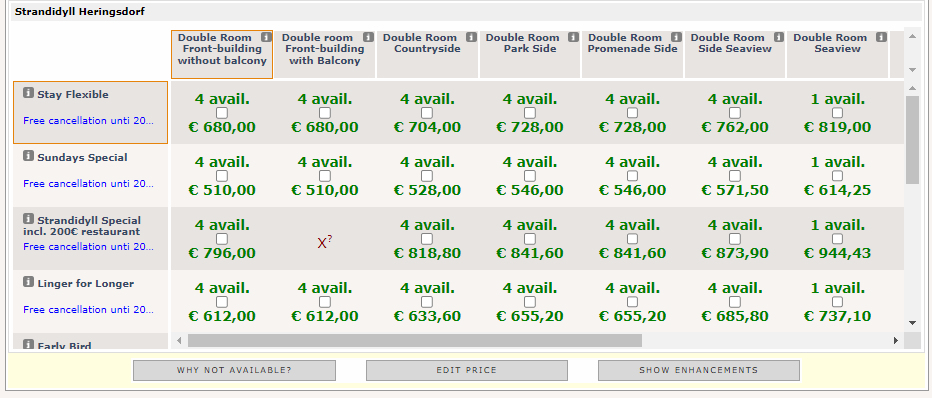
From here, you can choose the rooms and rate plans and proceed with the reservations similar to the process of the fixed travel period bookings.