Soll eine bestehende Buchung, die entweder über die Online Buchungsstrecke oder über phoneNG eingegangen ist, geändert werden, kann man entweder auf der Startseite den Button „Go to Inbox“ nutzen:

Es öffnet sich sofort die folgende Übersicht:
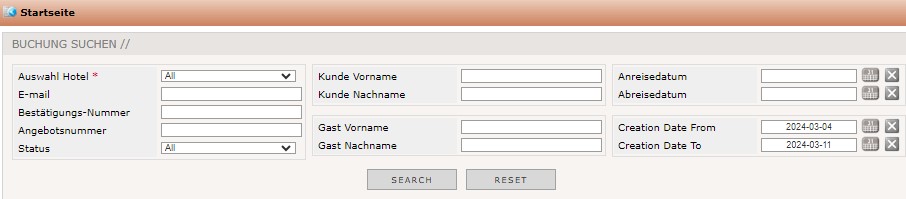
Um die Buchung finden zu können, reicht es oft schon aus, die Buchungsnummer einzugeben. Bei Buchungen ist dies die Bestätigungsnummer, bei Angeboten die Angebotsnummer. Da nicht immer bekannt ist, wann die Buchung vorgenommen wurde, sollte man die Daten im Feld „Creation Date From“ und „Creaation Date To“ entfernen. Wenn die Filter eingegeben sind, klickt man auf „Search“. In der Ergebnisliste unterhalb des Eingabefensters zeigen sich dann die Ergebnisse.
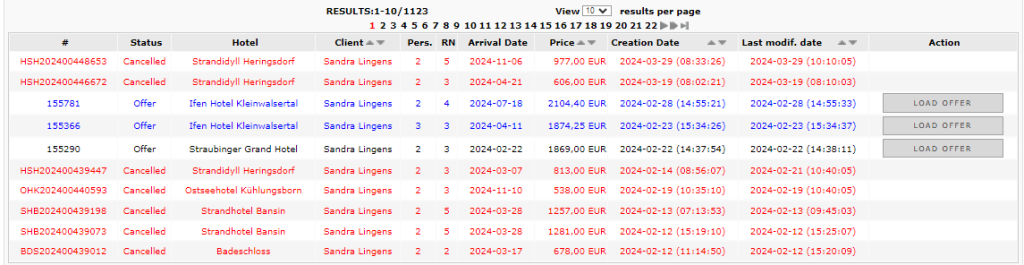
Hinter den einzelnen Buchungen sieht man zwei weitere Buttons: „Ändern“ und „Stornieren“. Bei Angeboten gibt es nur einen Button „Load offer“:
If you want to modify a reservation, you press the „Modify“ button at the end of the line:
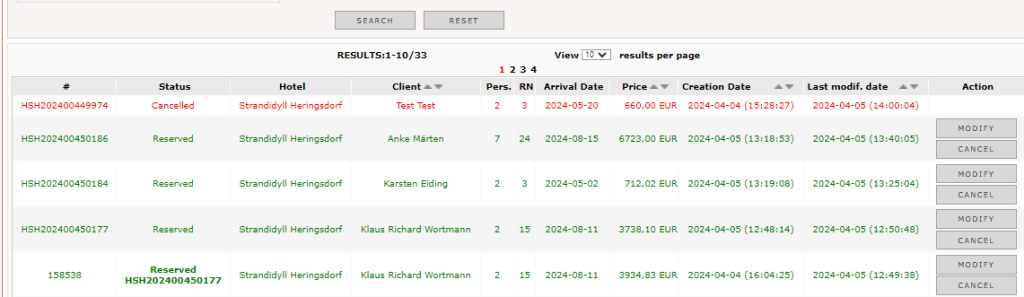
You were directly lead into the reservation step where you choose the number of rooms, arrival and departure date and the number of guests staying in the room. All this details may be modified and also the room and / or rate plan can be changed. After all modifications are done, the booking process is the same as already described above.
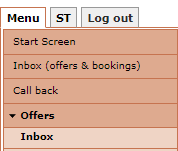
Another possibility to find a reservation which needs to be modified is to use the „Inbox“ menu on the left hand side:
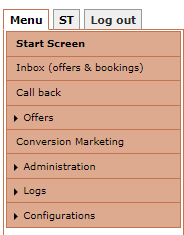
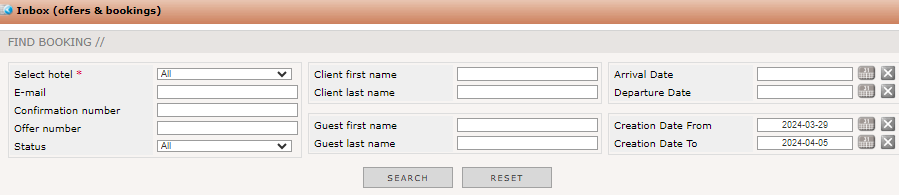
It will open the same screen to enter the searching parameters:
To confirm or modify an offer, you should choose the „Offer“ menu on the left hand side:
Here, you will enter also all necessary filters in the application:

After you have entered the offer ID or client name und click „Go“ to start searching the offer. All results were listed below:
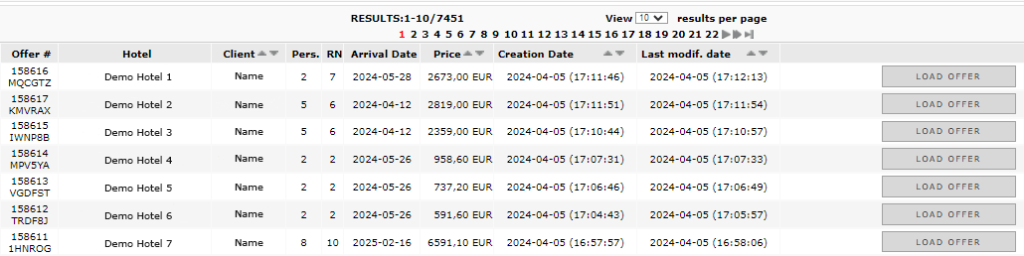
Press the button „Load offer“ to open the reservation step and proceed with the booking.